
Creating Presentations With AI
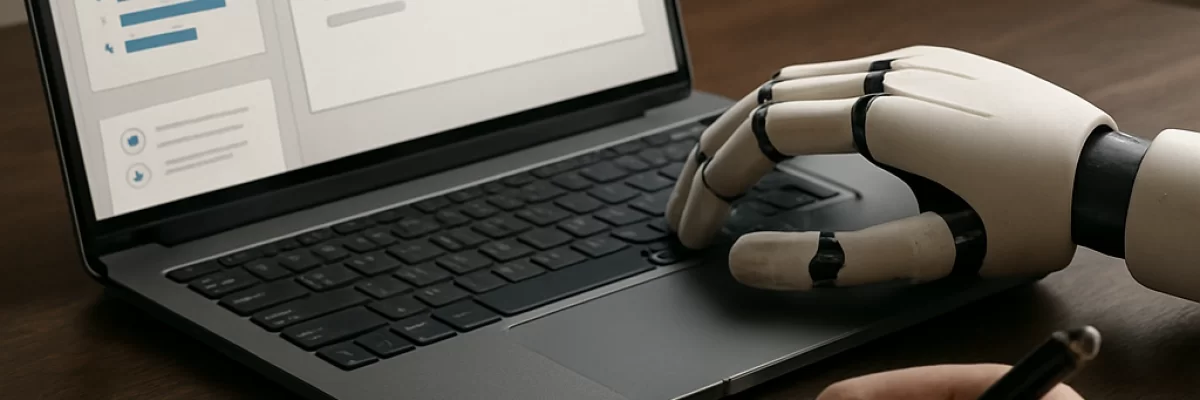
Where AI helps with presentations
AI is most useful for the parts of presentation creation that involve organizing, reworking, and exploring ideas. You can use it to turn a rough brief into a slide-by-slide outline, summarize a long document, propose a logical sequence, or suggest different ways to explain the same subject to an executive, customer, student, or general audience.
It can also rewrite paragraphs into concise slide text, create draft titles, prepare speaker notes, suggest questions an audience may ask, and critique a deck for repetition or unclear transitions. Depending on the application, you may be able to provide source material directly, work with presentation files, or combine a text-based AI system with separate design and image tools.
For examples of tools designed specifically for this purpose, see the AI presentation tools category. The important distinction is not simply whether a product says it creates slides, but whether it supports the parts of the job you actually need, such as editable layouts, source-based drafting, visual creation, collaboration, export, or rehearsal.
Prepare the material before you start
The quality of an AI-generated draft depends heavily on the information you provide. Before asking for slides, collect the material the presentation should be based on and decide what the audience needs to understand or do.
- The presentation's purpose and desired outcome
- The audience's knowledge level and likely questions
- The intended length or approximate number of slides
- Source documents, notes, data, quotations, or approved messages
- Brand requirements such as colors, fonts, tone, and logo use
- Any claims, examples, or visuals that must be included or avoided
Also decide which information is safe to upload. Confidential business plans, personal information, unpublished research, customer data, and legally sensitive material may require an approved tool or a different workflow. Do not assume that every AI presentation application handles uploaded content in the same way.
A practical way to create the deck
Start with the story, not the design
Ask the AI to propose a structure before asking it to produce finished slides. A useful request describes the audience, objective, available material, time limit, and preferred tone. For example:
“Create a 10-slide outline for a presentation to small-business owners. Use the attached brief as the source. Explain the problem, the proposed approach, the evidence, the costs, and the next step. Give each slide a short title, three or fewer key points, and a suggested visual.”
Review the outline yourself. Remove ideas that do not support the main point, combine repetitive slides, and change the order if the argument does not flow. It is usually easier to fix a weak structure before spending time on layouts and images.
Turn source material into draft slides
Once the outline is sound, ask for a first draft. Specify that the tool should distinguish between source-backed information and suggestions. You can request concise on-slide text, longer speaker notes, and a description of the intended visual for each slide.
For a long report, ask the system to identify the most relevant sections rather than summarizing everything. A presentation is not a document pasted onto slides. Each slide should have a clear purpose, and supporting detail can move into notes, an appendix, or a handout.
Develop the visual direction
AI can suggest layouts, diagrams, image concepts, color combinations, and ways to show relationships between ideas. Image-generation or image-editing tools can help explore visual directions, but the first result is rarely the final asset. You may need to refine the prompt, replace an unsuitable image, crop the result, or combine generated material with manually created charts and illustrations.
Be especially careful with text inside generated images, precise diagrams, logos, recognizable people, and visuals that appear to show real events. A visually attractive image can still contain errors or create copyright, permission, or attribution questions. Use approved assets and check the rights and licensing requirements for anything intended for publication or commercial use.
Add notes and presentation variants
Speaker notes are a useful AI task because they can expand short slide points into a spoken explanation without overcrowding the slide. Tell the system how long the talk should be, what tone to use, and which claims must remain unchanged. Then read the notes aloud and rewrite anything that sounds unnatural or says more than the evidence supports.
You can also ask for variants of the same deck: a shorter version for a meeting, a more detailed version for a workshop, or a version that explains technical material to a non-specialist audience. Compare these versions against the original objective rather than accepting the longest or most polished one automatically.
Prompts that produce more useful drafts
There is no single prompt that guarantees a good presentation. Better results usually come from giving the AI enough context and then refining one part at a time. Include:
- Who will see the presentation and what they already know
- What decision, action, or understanding the presentation should produce
- How much time is available
- Which sources it may use
- What tone, reading level, and brand style to follow
- What the output should contain, such as slide titles, bullets, notes, and visual suggestions
Instead of asking, “Make a presentation about this report,” try: “Use only the supplied report. Create a draft for a five-minute talk to a non-technical audience. Keep each slide focused on one idea, flag unsupported claims, and place explanations in speaker notes rather than on the slide.”
After reviewing the result, use focused follow-up requests such as “make slide 4 more concrete,” “replace jargon with everyday language,” or “show where this claim comes from.” Small revisions are often more effective than repeatedly asking for an entirely new deck.
What to look for in an AI presentation tool
Different tools support different parts of the process, so choose based on the work you need to do. Useful capabilities may include:
- Importing or analyzing documents and notes
- Generating an outline before creating slides
- Producing editable slide text and layouts
- Keeping a consistent visual style across the deck
- Creating, editing, or finding suitable visuals
- Generating speaker notes and presentation summaries
- Adapting a deck for different audiences or lengths
- Exporting to a format you can continue editing
- Sharing, commenting, or collaborating with other people
- Supporting accessibility checks or accessible editing practices
Some tools are strong at text and structure but limited in design control. Others produce attractive layouts that require substantial correction. Check whether the result remains editable and whether you can adjust fonts, spacing, images, charts, notes, and slide order without rebuilding the presentation manually.
Review the result before presenting
An AI-generated deck is a draft, even when it looks finished. Compare every important statement with the original source and verify numbers, dates, quotations, names, citations, and conclusions. AI may compress a qualification, combine separate claims, or present an interpretation as a fact.
Review the presentation as an audience member would. Does the opening explain why the topic matters? Does every slide support the main message? Are the text and visuals readable from a distance? Are the transitions clear? Does the ending tell people what to remember or do next?
Check accessibility as part of editing rather than as a final cosmetic step. Look at contrast, font size, reading order, captions or transcripts where relevant, descriptive text for meaningful visuals, and whether the presentation still makes sense without relying only on color or decoration. The exact checks available will depend on the application and the format you use.
Finally, rehearse. Ask AI to act as a skeptical audience member, generate likely questions, or identify slides that may be difficult to explain. Use those suggestions to improve your preparation, but rely on your own understanding when answering questions. You remain responsible for the claims and recommendations you present.
When AI is a poor fit
AI may not be the best starting point when the presentation depends on confidential material that cannot be processed by the available tools, highly specialized evidence that requires close expert interpretation, or a carefully controlled visual identity that automated layouts cannot preserve. It is also a poor fit if there is no clear objective or source material; generating more slides will not solve an unclear message.
The strongest use of AI is usually selective. Let it handle repetitive drafting, alternative wording, structure suggestions, notes, and critique, while people control the purpose, evidence, creative direction, sensitive information, accessibility, and final delivery.