
Creating Videos With AI
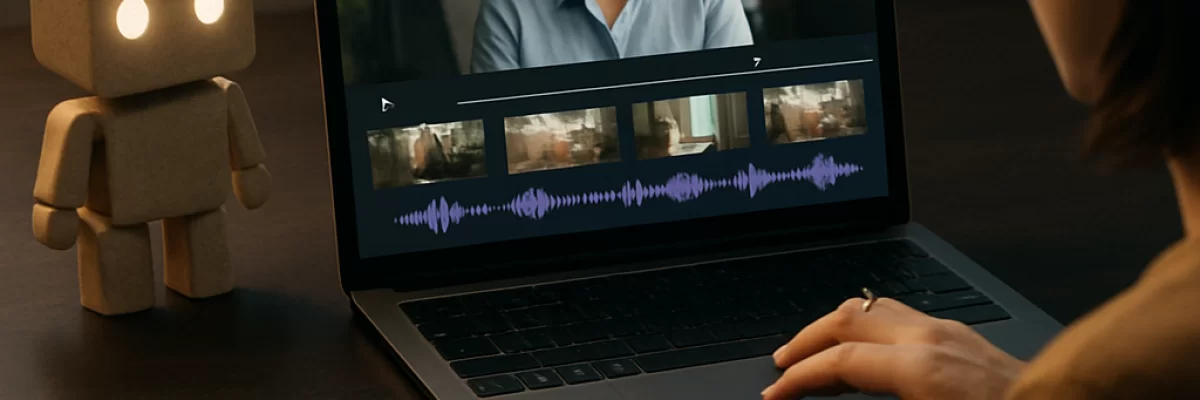
What AI can help you do
AI video creation covers several different tasks, so the right tool depends on what you are starting with and what you want to produce. Some tools generate video clips from text or images. Others help assemble scenes, create avatar presentations, edit recorded footage, add captions, translate speech, or turn long videos into short clips.
AI is usually most helpful as a production assistant rather than a complete replacement for video planning and editing. It can give you a fast first version, but you still need to choose the strongest ideas, correct errors, maintain consistency, and prepare the final video for its intended audience.
Choose the type of video you want to make
Start by defining the finished video rather than choosing a tool first. Consider:
- Text-to-video: You describe a scene, action, style, or camera movement and generate a short clip.
- Image-to-video: You provide an image and ask the tool to animate or extend it.
- Scripted or presenter-led video: You provide a script and use generated narration, an avatar, or supporting visuals.
- AI-assisted editing: You upload recorded footage and use AI for trimming, captions, cleanup, translation, or rearrangement.
- Short-form repurposing: You turn a longer recording into shorter clips for social platforms or internal sharing.
For example, a product demonstration may need screen recordings, captions, and precise editing, while a short fictional scene may benefit more from text-to-video generation. A training video may require a script, narration, clear visuals, and translation.
Prepare the material before generating anything
AI results are easier to evaluate when you know what the video is supposed to communicate. Prepare as much of the following as applies:
- The purpose of the video and its target audience
- A script, outline, or list of key points
- Reference images, product screenshots, logos, or recorded footage
- The preferred length, aspect ratio, language, and tone
- Visual guidance such as colors, locations, characters, clothing, or branding
- Any facts, wording, or claims that must remain exact
If you are making a video from a script, separate spoken narration from instructions about what should appear on screen. If you are generating scenes, describe the subject, setting, action, framing, lighting, and movement. Clear constraints usually make the first result more useful than a vague request for a “cinematic” video.
A practical workflow for creating a video with AI
1. Write a simple brief
Describe the audience, purpose, format, length, and desired result in a few sentences. Decide whether the video should inform, demonstrate, entertain, or persuade. A short brief helps prevent attractive but irrelevant scenes.
2. Create a script or storyboard
Ask an AI writing assistant to turn your idea into a short script or scene list, then revise it yourself. A storyboard does not need to be elaborate. It can simply list the narration, visual, and approximate duration for each section.
A useful request might be:
“Create a 60-second explainer video outline for first-time users of a budgeting app. Divide it into six scenes. For each scene, include narration, the main visual, on-screen text, and the purpose of the scene. Keep every claim supported by the information I provide.”
3. Generate or gather the visuals
Generate short clips one scene at a time when you need control over the result. Alternatively, combine AI-generated footage with screenshots, product recordings, photographs, stock material, or footage you already own. Mixing sources can be more practical than asking one generation system to produce an entire polished video in a single attempt.
For a generated scene, include concrete details such as:
- The main subject and what it is doing
- The location and time of day
- The shot type, such as close-up, wide shot, or overhead view
- The direction and speed of movement
- The visual style and lighting
- What should not change between shots
4. Assemble the first cut
Put the clips, narration, music, captions, and other assets into an editor. Check whether the order makes sense and whether each visual supports the narration. The first cut is mainly for finding structural problems; do not spend too long polishing a scene that may later be removed.
5. Refine one problem at a time
When a result is weak, make a targeted change instead of rewriting the entire request. You might ask for slower movement, a wider composition, a clearer subject, less camera motion, or a different background. For a script, revise unclear wording separately from the visual instructions.
6. Review and export
Watch the video from beginning to end, including with the sound off and with headphones. Check the spoken words, captions, names, numbers, visual continuity, timing, transitions, and export settings. Generated files may require transcoding, re-editing, or metadata handling before they work reliably in every editing application or publishing platform.
Prompt examples that give useful direction
Prompting works best when it describes the intended shot rather than relying only on style labels. For example:
- “Create a six-second wide shot of a small greenhouse at sunrise. A person in a blue jacket walks from left to right carrying a watering can. Keep the camera mostly still, use natural morning light, and leave open space on the right for a caption.”
- “Animate this product image with a slow forward camera movement. Keep the product shape, logo, colors, and text unchanged. Use a plain light background and do not add extra objects.”
- “Turn this 20-minute interview into three short clips. Preserve the speaker’s exact wording, identify the strongest self-contained points, suggest a title for each clip, and mark any section that needs human review.”
These examples specify the subject, action, timing, composition, and restrictions. You can adapt the same pattern to your own footage or concept.
What to look for in an AI video tool
Choose based on the part of the job you need help with. Useful capabilities may include:
- Text-to-video or image-to-video generation for creating short visual sequences
- Reference images or style controls for keeping the look closer to a supplied design
- Timeline editing for combining generated clips with real footage and audio
- Captioning and transcription for making spoken content easier to follow
- Voice, dubbing, or translation features when the video needs additional languages
- Avatar or presenter tools for scripted instructional or business videos
- Export options that match the destination where you will publish the video
The AI video generation tools category is a useful starting point for generated scenes, while AI video editing tools are more relevant when you already have footage. Tools such as Runway, Luma Dream Machine, Pika, and Kling AI are examples of products associated with video creation or generation. Their exact capabilities and access conditions can change, so check the current product details before selecting one.
Common problems to expect
Inconsistent people and objects
Characters, clothing, faces, products, and backgrounds may change between generated shots. Use reference material where supported, keep scenes short, and plan edits that do not depend on perfect continuity.
Unreliable text and details
Generated video may distort signs, labels, logos, interfaces, hands, or small objects. For exact wording, add text in an editor instead of relying on generated lettering. Product names, prices, instructions, and on-screen claims deserve a manual check.
Motion that does not match the idea
A prompt can describe an action clearly while the output shows a different movement or camera angle. Generate a small number of variations, select the most usable take, and simplify the action when necessary.
Editing and file compatibility
Generated files may not behave consistently in every editing application or publishing platform. Test a short export early, and keep original assets so you can transcode or rebuild the edit if needed.
What you should review yourself
Before publishing, verify that:
- The video communicates the intended point without misleading omissions
- The narration matches the visuals and the script
- Names, dates, numbers, captions, and product details are correct
- Faces, voices, logos, and other recognizable material are used appropriately
- The pacing is comfortable and the audio is clear
- The video works in the required aspect ratio and export format
- The final file does not contain unwanted artifacts, duplicated frames, or broken text
Human review matters most when the video represents a person, explains factual information, advertises a product, or could affect a viewer's decisions. AI-generated footage should not be treated as evidence that an event happened.
When AI video creation is a poor fit
AI may be a poor choice when you need exact continuity, precise technical demonstrations, legally sensitive footage, or a fully controlled production with no visual errors. It may also be inefficient if you already have good footage and only need straightforward trimming or captioning. In those cases, a conventional editor with limited AI assistance can provide more predictable results.
The most dependable approach is often a hybrid one: use AI to explore ideas, draft scripts, generate selected assets, or speed up repetitive editing, then use human judgment and conventional tools to assemble and approve the final video.